
In 2025, Congress enacted the Federal Scholarship Tax Credit (also known as the Education Freedom Tax Credit) under section 25F of the Internal Revenue Code. Beginning January 1, 2027, individual taxpayers may be able to claim a credit for certain cash contributions to eligible scholarship granting organizations (SGO). States must elect to participate in the credit, and provide a list of SGOs in the state to the IRS. Once a state has made that election, an individual taxpayer may donate to a scholarship granting organization within that state and claim the credit. Colorado notified the IRS it will participate in the Federal Scholarship Tax Credit for tax year 2027.
The Colorado Department of Revenue is responsible for compiling the state list of SGOs. Organizations seeking to be listed on Colorado’s SGO list may now apply through the Colorado SGO Application Portal. To guarantee inclusion on Colorado’s 2027 SGO list, applications must be submitted in the portal by November 30, 2026. The state will submit its official list of eligible SGOs to the IRS by January 1, 2027.
Individuals who want more information about the federal scholarship tax credit should refer to the IRS website (www.IRS.gov) and consult with their tax advisor. Organizations can access the temporary and proposed regulations issued by the IRS through the IRS news release.
Before You Sign In
To ensure a smooth application process, you should take the following steps before signing into the Colorado SGO Application Portal
-
Gather the information and documentation needed to apply
To apply, you will need some basic information about your organization, including your organization’s federal employer identification number (FEIN). You will also need copies of the following documents:
- Your organization’s 501(c)(3) determination letter, or IRS Form 1023 with proof of submission through Pay.gov if your application is pending.
- Certificate of Good Standing and a Certificate of Registration from the Colorado Secretary of State, issued within the last 90 days. Visit ColoradoSoS.gov to obtain copies of these certificates.
- Evidence that a section 25F segregated account has been established for Colorado, such as a bank statement.
- Governing documents or bylaws and written policies and procedures evidencing an ability and intent to comply with the operational requirements of section 25F(d) of the Internal Revenue Code.
Prepare these documents for upload as PDF files with a file size of 10 MB or less. We have prepared a preview version of form DR 1998 to help you gather the information you will need, but you must complete your application through the portal.
-
Decide who will sign the application
The application must be signed by an officer, director, trustee, or other official who is familiar with its contents, including the contents of the attachments, and who is authorized to sign for the organization. Make sure the signer is available to review and sign the application when you are ready to submit it.
-
Download the Google Authenticator app.
IRS guidance requires the SGO Application Portal to be secured by multifactor authentication. Install the free Google Authenticator app on your phone or tablet. You can download the app from the Google Authenticator App Store page for iPhone or iPad or from the Google Authenticator Google Play Store Listing.
Create Your Account
When you are ready to begin the application, access the Colorado SGO Application Portal at SGO.Colorado.gov. Follow these steps to create your account.
-
Provide your email address
Check the box to indicate that you have read and agree with the security notice. You will be required to check this box each time you sign in. Then click “Create an account.” Enter your email address and complete the security check.
-
Confirm your email address and create a password
The Portal will send an email to the address provided in step one. Check your spam folder if you don’t receive the email. Click on the link in that email to confirm your email address. Then create a password.
-
Connect the Google Authenticator
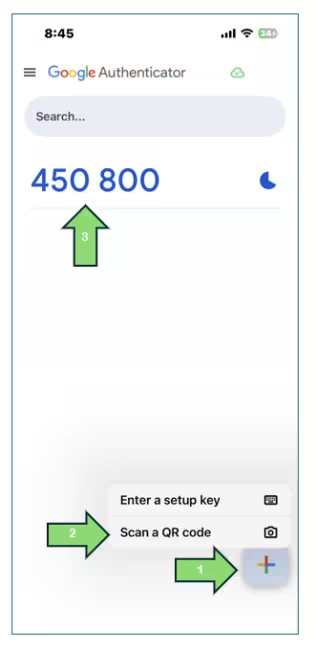
Open the Google Authenticator app on your phone or tablet. Tap the plus symbol (arrow 1 below), then choose “Scan a QR code” (arrow 2 below). You may need to authorize the app to access your camera. Scan the QR code on your computer screen. Enter the 6-digit number shown in the app (arrow 3 below). You will need a new 6-digit code from the app each time you sign in.
Complete the Application by November 30
We anticipate this application will take approximately 30 minutes to complete once you have gathered the information described above. In addition to general instructions at the beginning, each step includes instructions for completing that step. Several steps include buttons to upload supporting documentation. The portal will track your progress as you complete the steps.
You may exit the application at any time and return to complete it later. To return to a saved application, go to SGO.Colorado.gov. Check the box to indicate that you have read and agree with the security notice, and click “Already have an account? Sign in.” Enter your email address, password, and the 6-digit code from the Google Authenticator app.
The Colorado Department of Revenue will notify you once your application has been processed. The Department will contact you if additional information is needed. If you prefer to be contacted via email, be sure to check the opt-in box for email communication in the application. Otherwise, expect communication via postal mail to the address provided on the application.
The Department is required to certify Colorado’s SGO list to the IRS annually on or before January 1. Organizations that wish to be included in Colorado’s SGO list should file this application, and the required attachments, no later than November 30. The Department may not be able to consider applications received after this date.
Get Help
Contact us by email at DOR_SGOApplications@state.co.us if you need help accessing the Colorado SGO Application Portal or completing the application.